 Phenquestions
The middle mouse button helps you scroll through long webpages and screens with a lot of data. If that stops, well you will end up using the keyboard for scrolling which is painful. In this post, we are going to suggest troubleshooting tips to when the Middle mouse button not working in Windows 10.
The problem could either be with the hardware or software. To isolate the probability of a hardware failure, try connecting the mouse to a different system and check if it works fine there. If yes, then the issue is with the software. Also possible that a software update, especially gaming software could have misconfigured in a way that middle button does not respond as expected.
Middle mouse button not working
Here are some suggestions you can try:
- Run the Hardware and Devices troubleshooter
- Update the mouse drivers
- Install OEM specific Mouse Drivers
- Modify Registry entries.
1] Run the Hardware and Devices troubleshooter
Before proceeding to more complicated solutions, a wise idea would be to run the Hardware and Devices troubleshooter, an in-built mechanism in Windows 10 which checks for issues with the hardware and resolves the problem if possible.
- Click on the Start button and go to Settings > Updates and Security >Troubleshoot
- Select the Hardware and Devices troubleshooter from the list and run it
- Restart the system once done.
2] Update the mouse drivers
Manufacturers of mice keep changing products and updating drivers. In case you used a disk to install the software for the mouse, there's a chance that the drivers are obsolete. The best approach would be to update the drivers.
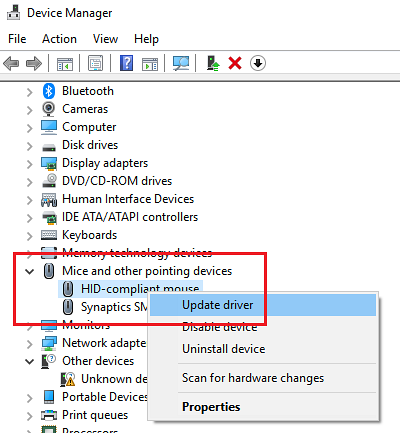
- Press Win + R to open the Run window and type the command devmgmt.msc. Press Enter to open the Device Manager.
- While keeping the device connected, expand the list for Mice and other pointing devices.
- Right-click on the driver for the problematic mouse and select Update driver.
- Restart the system once the driver gets updated.
3] Install OEM specific Mouse Drivers
If your Middle mouse button is working, but it's not working as expected, then you should install OEM, specific drivers. When you install Windows, it will use a generic driver for all. However, these drivers limit the functionality of the mouse. Some also configure the middle mouse to respond to specific action which does not work without the right drivers.
In this case, I would suggest you visit the PC manufacturer's website to download and install the latest drivers. Then open the software, and configure the way it was set before. Some OEMs also offer gestures. Make sure to check on it as well.
4] Modify Registry entries
In case a Windows Update has messed up with the Registry entries, we could correct it as follows:
Press Win + R to open the Run window and type the command regedit. Press Enter to open the Registry Editor.
In the Registry Editor, navigate to the key:
HKEY_CURRENT_USER\Control Panel\Desktop
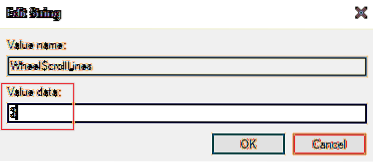
On the right-pane, double-click on the entry WheelScrollLines to open its Properties. Change the value of the Value Data to 3.
If this does not help - maybe its a hardware problem and maybe you need to either get it repaired or replaced.
Related reads:
- Mouse left-click button not working
- Right-click not working or slow to open.